




Introducing Our New Google Ads PPC Management $20/mo

All Email Issues Resolved – All Systems Fully Operational

Award Winning Hosting Since 2017

Free Backups
Free Site Transfers
cPanel Included
Malware Protection
24/7/365 Support
Litespeed Servers
AI WAF Protection
DDOS Protection
2026-top-25-reseller-hosting
2023-silver-top-25-best-wordpress-hosting (1)

How to Change the Language in SiteWorx

Table of Contents

Looking for cPanel Web Hosting?
$ 4.95 /mo when you renew

SiteWorx supports many languages. If you want to change your SiteWorx’s language to a native one, you should follow this tutorial.

1. Log in to your SiteWorx account.

2. In the Administration section, click on User Accounts.sw user accounts icon


3. Click on the Pencil icon attached to your SiteWorx account.sw user account edit


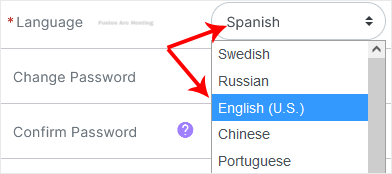
4. Select the appropriate language from the drop-down menu and click Save.language change
Your SiteWorx’s language setting has been successfully updated.
