




Introducing Our New Google Ads PPC Management $20/mo

All Email Issues Resolved – All Systems Fully Operational

Award Winning Hosting Since 2017

Free Backups
Free Site Transfers
cPanel Included
Malware Protection
24/7/365 Support
Litespeed Servers
AI WAF Protection
DDOS Protection
2023-silver-top-25-best-wordpress-hosting (1)

How to Change the Password of a WordPress Account

Table of Contents

Looking for cPanel Web Hosting?
$ 4.95 /mo when you renew

You can easily change the password if you have access to your WordPress account.

1. Log in to the WordPress dashboard.

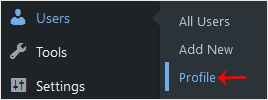
2. From the Dashboard menu, go to Users and click on Profile.wp your profile edit
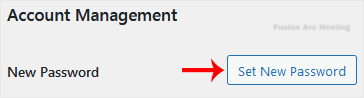
3. Scroll down to Account Management and click on Set New Password.wp password gen profile
4. Copy the password to a safe place and click on Update Profile to change your password.

Your password has been successfully changed. You can now log in with your new credentials.
