




If you want to change the server time, you can easily do it from WHM Host Manager.
1. Log in to your WHM Root Account.
2. Go to Server Configuration >> Server Time or type Server Time in the menu filter box. The option will appear. Click on it.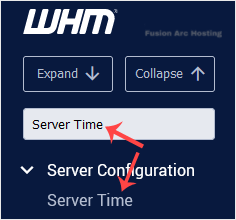
3. You can check the already configured time under Current Time. Click on Sync Time with Time Server to sync if the time is incorrect.
4. To change the time zone, select your preferred continent/city from the drop-down menu and click on Change TimeZone.
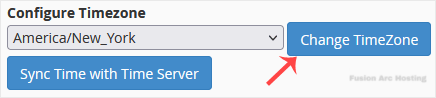
The server timezone has been changed successfully.
