
Introducing Our New Google Ads PPC Management $20/mo

All Email Issues Resolved – All Systems Fully Operational

Award Winning Hosting Since 2017

Free Backups
Free Site Transfers
cPanel Included
Malware Protection
24/7/365 Support
Litespeed Servers
AI WAF Protection
DDOS Protection
2023-silver-top-25-best-wordpress-hosting (1)

How to Install a WordPress Theme Manually

Table of Contents

Looking for cPanel Web Hosting?
$ 4.95 /mo when you renew

You can easily install a WordPress theme and activate it manually. Please, follow the steps below to do so.

1. Log in to the WordPress dashboard.

2. From the Dashboard menu, go to Appearance and click on Themes.wp dashboard apperance themes

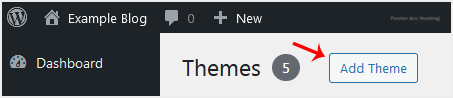
3. Click on Add Theme.wp themes add new button


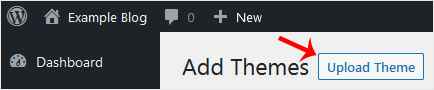
4. Choose Upload Theme.wp themes upload theme button


5.
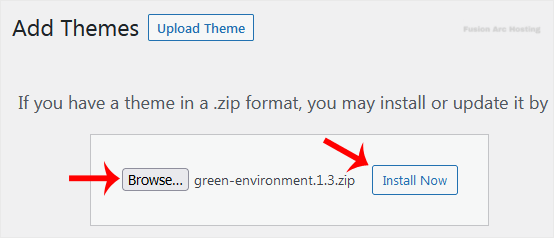
Click on Browse and choose the theme from your computer. Click on Install Now.wp themes upload theme browse zip

6. It will take a few moments to install. After that, click on Activate.wp themes upload theme activated
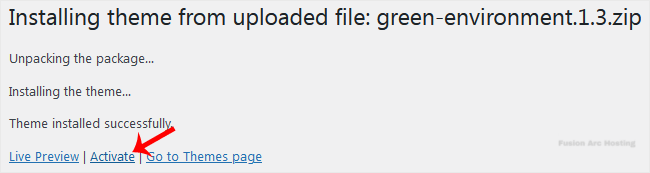
Congratulations, you have installed and activated a new WordPress theme.