



Softaculous helps you install web applications very easy. Please, follow the steps below to install Joomla.
1. Log in to your cPanel account.
2. In the Software section, click on Softaculous Apps Installer.
3. cPanel will redirect you to the Softaculous interface.
4. On the left side, type Joomla in the search box, then click the Joomla link that appears.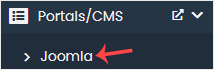
5. Click on Install.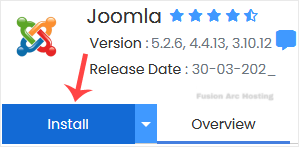
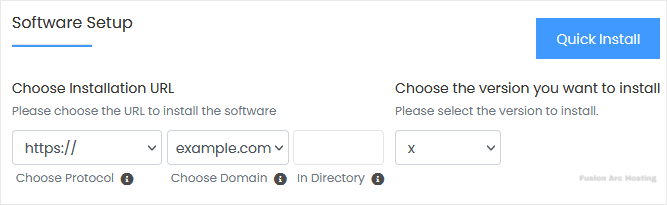
6. Fill in the necessary fields under the Software Setup section:
- Choose Installation URL: Choose the appropriate protocol/domain. Inside the “In Directory” field, should you want to install this in a directory, i.e., example.com/directory, enter the directory name. Otherwise, please, leave it blank to install in your main domain, i.e., example.com.
- Choose the version you want to install: You can leave this as it is.
7. Under the Site Settings section, enter the following information:
- Site Name: Enter the name of your website, such as my first website.
- Site Description: Site Description or Slogan
8. Under the Admin Account section, enter the following information:
- Admin Username: Your new Joomla username (for security reasons, do not use the administrator or the admin username).
- Admin Password: Use a strong password.
- Real Name: Leave this as it is or use your full name.
- Admin Email: Your e-mail address.
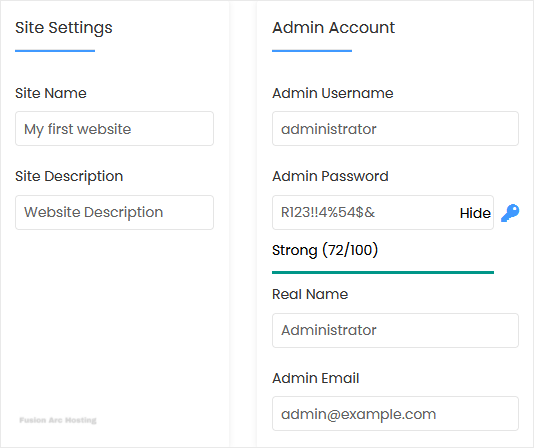
Note: Copy the admin username and password to Notepad. You will need those to access the admin area of your Joomla website later.
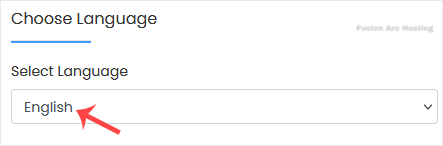
9. Choose Language: You can choose the language of your Joomla. The default language of Joomla is English.
10. Advanced Options: Leave this unless you want to change the database name or take an automated backup. Please, note that creating frequent backups may take a lot of disk space.
Finally, scroll down to the end of the page and click on Install.
