




The Virtualizor’s automatic reinstall option does not allow you to modify or create a custom partition. However, you can create such a partition through a manual installation/reinstallation of an OS. You can follow these instructions to install/reinstall an OS manually.
1. Log in to your Virtualizor Control Panel.
2. From the left side panel, click on List VPS.
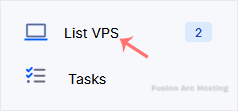
3. Hover your mouse on the appropriate VPS, and that line will be highlighted. Then click on the Wrench icon in the highlighted line.

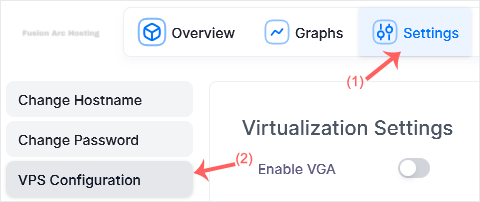
4. Click on Settings and select VPS Configuration.
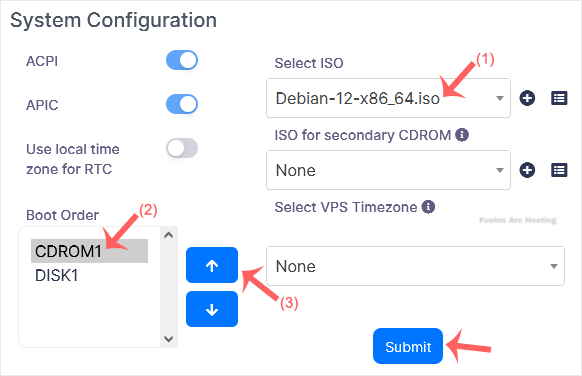
5. Under VPS Configuration, select ISO, set the boot order to CDROM first using the up arrow, and click Submit.
6. Reboot your VPS by clicking on the Reboot icon.

7. Now, quickly click on VNC without waiting.

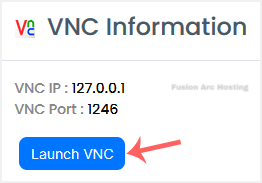
8. The new Popup box will open. Click on Launch VNC.
Most operating systems ask you to press any button to start an OS installation while booting. When prompted, press any key on your keyboard, and the OS installation/reinstallation will begin. It may also show you an option such as Install OS or Test this media. For an OS installation/reinstallation, select Install OS and press Enter.
Once the installation starts, it will ask you to create a partition, set a password, etc.
After the installation is complete, don’t forget to set the boot order to CDROM and reboot the VPS. Otherwise, the VPS will start in installation mode on the next boot instead of the normal mode.
Note: If VNC got disconnected, then click on Connect to reconnect it.
