



You can easily Install/Reinstall the operating system using SolusVM 2. However, note that this option will destroy all the data on your VPS.
1. Log in to your SolusVM 2 Control Panel.
2. Under Projects, click on the project that contains your VPS.
3. Click on the appropriate VPS.
4. Click on Reinstall.
5. In the Operating System section, select the OS you want to install. To choose a specific version, click Other Versions and choose it from the list.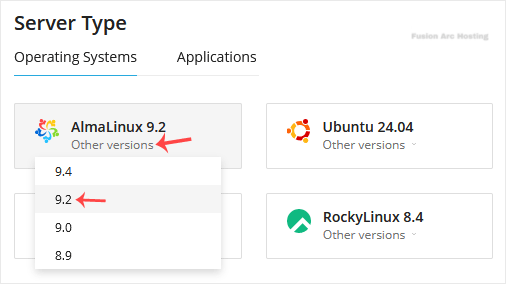
6. Tick the Reset password option, click the clipboard icon to copy the password, and save it in Notepad, as you will need it later to access your VPS.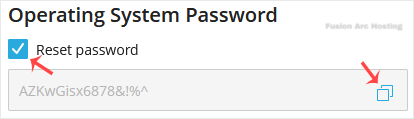
7. Scroll down to the end of the page and click on Reinstall. A confirmation box will prompt. Choose Reinstall to proceed.
It will show a message that the installation can take up to 10 minutes. Copy the password to Notepad as you will need it later to access your VPS.
