



You can use SiteWorx’s inbuilt file manager instead of an FTP program.
1. Log in to your SiteWorx account.
2. In the File Manager section, click on File Manager.
3. If you have multiple domains, choose the appropriate domain from the drop-down menu and click on Login.
4. Navigate to the directory where you want to upload your file. For uploading a file in the HTML directory, click on it.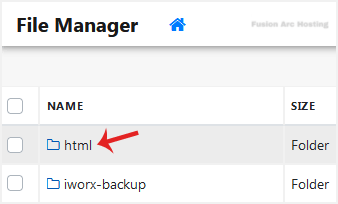
5. Click on Upload.
6. Click the upload box to choose a file from your computer. The upload process will begin automatically. Alternatively, drag and drop files from your computer directly into the upload box.
Your files have been uploaded. You can now manage them directly from the File Manager.
