




Staying organized today means keeping your email, calendar, and contacts synced across multiple devices. When those systems don’t communicate properly, managing schedules and contacts can quickly become frustrating.
With cPanel, calendar and contact syncing is built directly into your hosting account. Using the industry-standard CalDAV and CardDAV protocols, you can connect your calendars and contacts to supported apps on laptops, phones, and tablets without relying on third-party services.
This guide walks through how to locate your calendar and contact settings in cPanel and connect them to common devices and applications.
Where to Find Calendar and Contact Settings in cPanel
All CalDAV and CardDAV connection details are located inside your cPanel account.
- Log in to cPanel
- Navigate to the Email section
- Click Calendars and Contacts
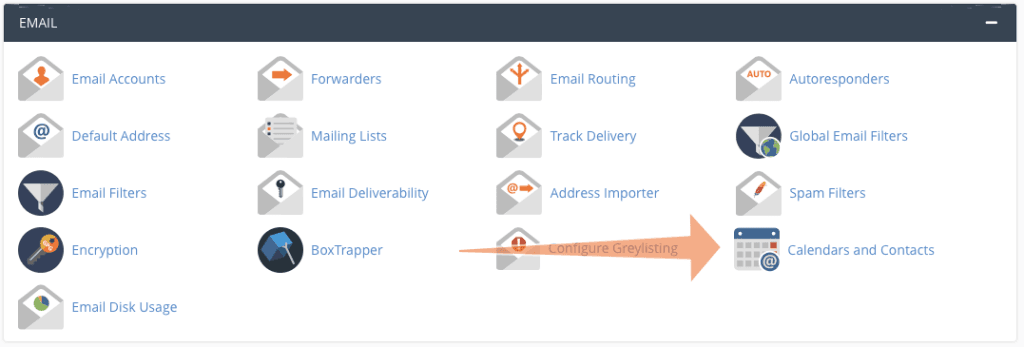
On this page, cPanel provides the information required to connect your calendar and contacts to external apps:
- Username
- Server URL
- Alternate Server URL
When prompted for a password during setup, use your email (webmail) password, not your main cPanel login password.
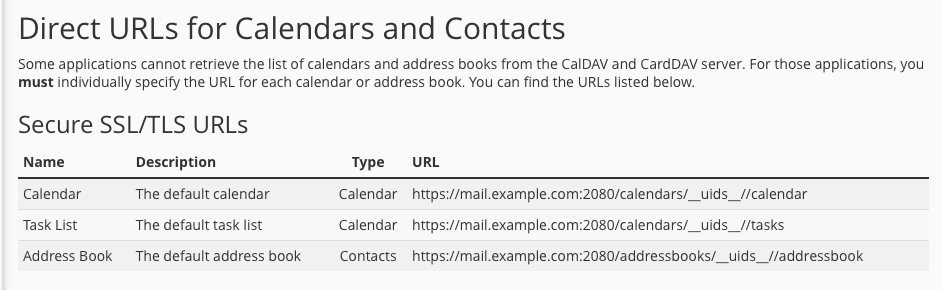
Some applications have limited support for retrieving CalDAV and CardDAV account information from the server. In that case, you need a direct URL, which is displayed at the bottom of the Calendars and Contacts page.
Manual CalDAV and CardDAV Settings
Some devices and apps automatically detect calendar and contact services. Others require manual configuration.
If manual setup is required, use the values shown on this page exactly as displayed.
Direct CalDAV and CardDAV URLs
Certain applications cannot automatically discover calendars or address books. In those cases, you must provide a direct URL.
At the bottom of the Calendars and Contacts page, cPanel lists direct URLs for:
- Your default calendar
- Your default address book
These URLs can be copied and pasted directly into apps that require them.
Sharing Calendars with Other Users (Calendar Delegation)
If you need another user to view or manage your calendar, cPanel supports calendar delegation.
This is useful when:
- An assistant needs to manage appointments
- A team member needs editing access
- Open Calendar Delegation in cPanel
- Select the calendar owner
- Choose the delegate user
- Enable editing access if required
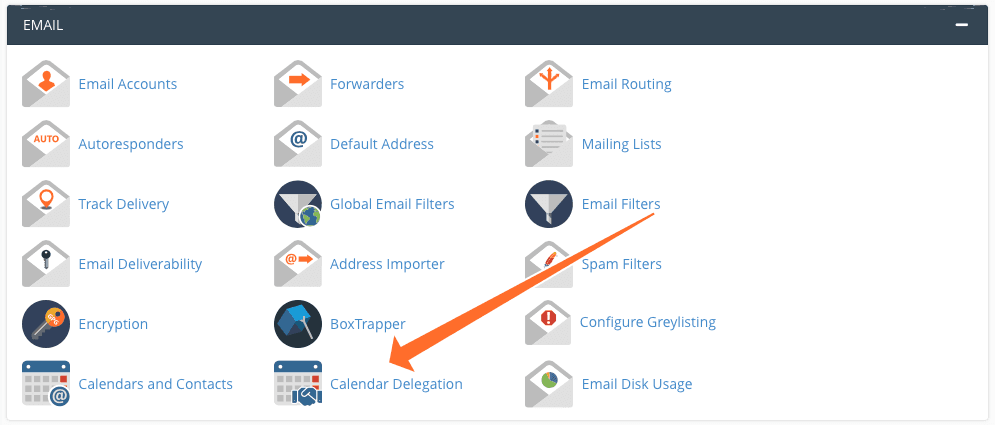
Note: Delegation only works between email accounts hosted on the same server and requires at least two email accounts.
Connecting Your Calendar and Contacts to iPhone or iPad (iOS / iPadOS)
Apple devices support CalDAV and CardDAV natively.
- Open Settings
- Go to Mail → Accounts
- Tap Add Account
- Select Other
- Choose Add CalDAV Account (calendar) or Add CardDAV Account (contacts)
Enter:
- Server: your mail server (include port
2080) - Username: your email address or cPanel username
- Password: your email password
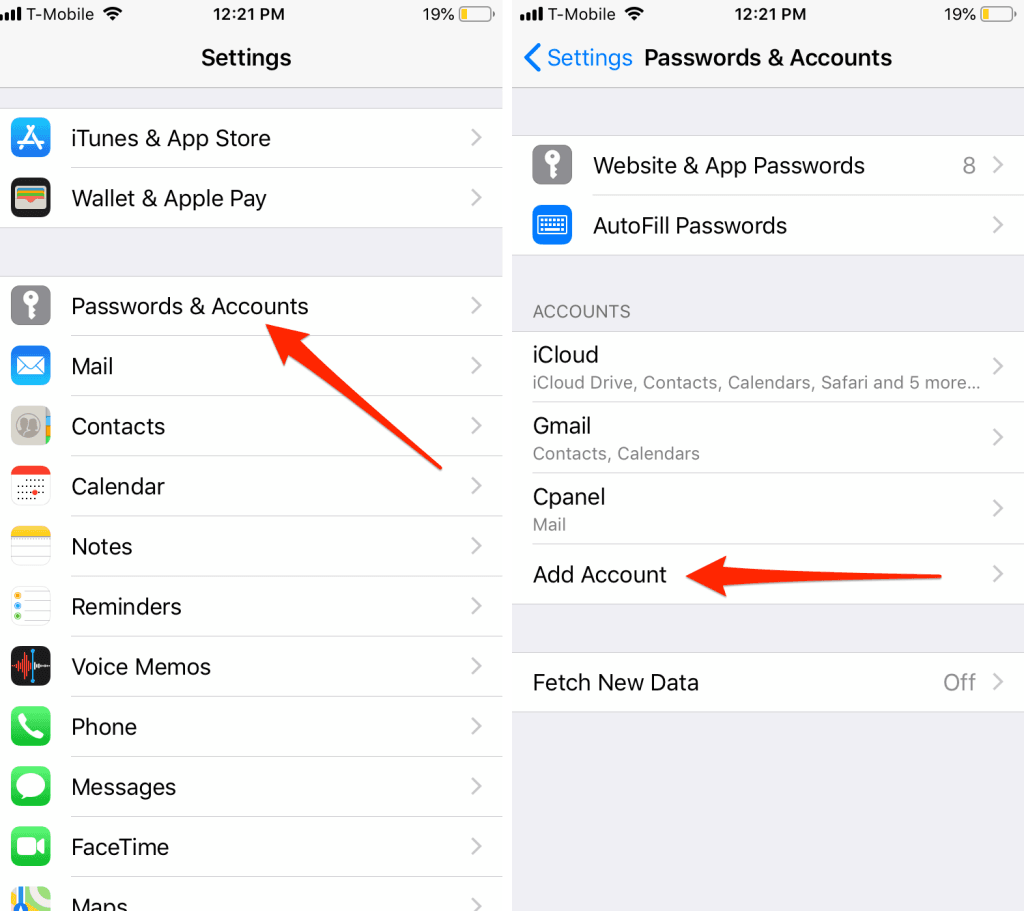
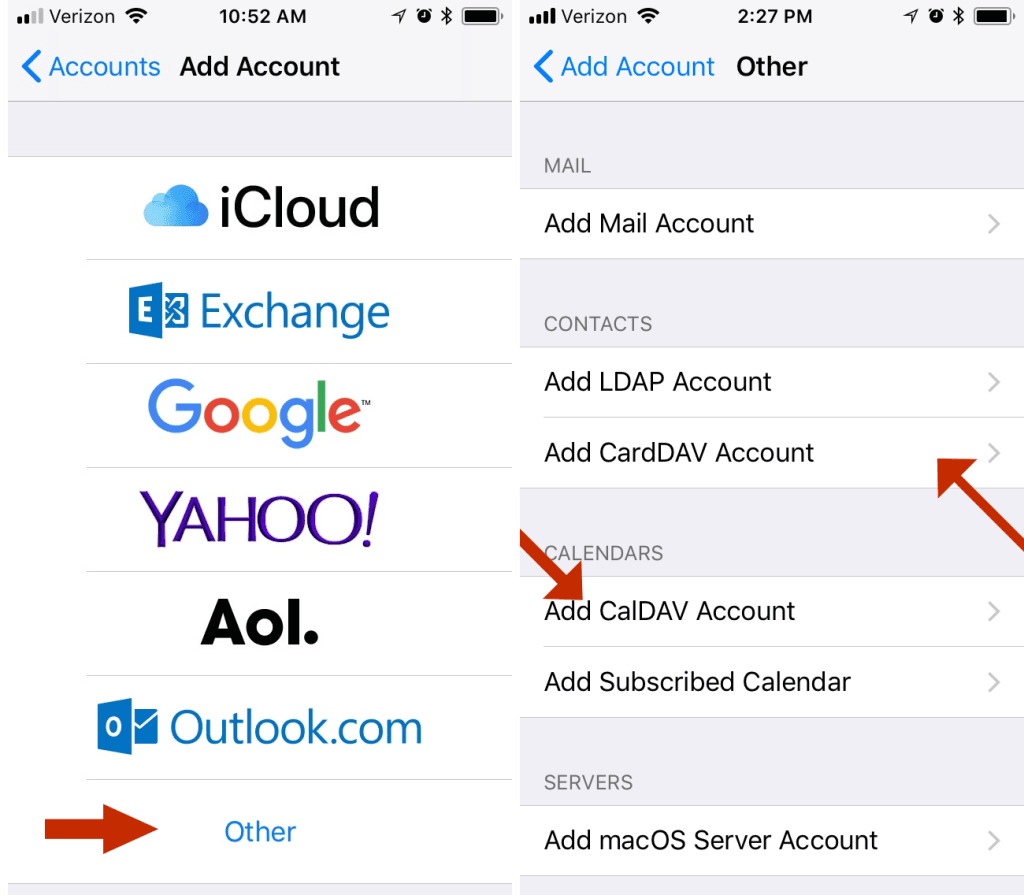
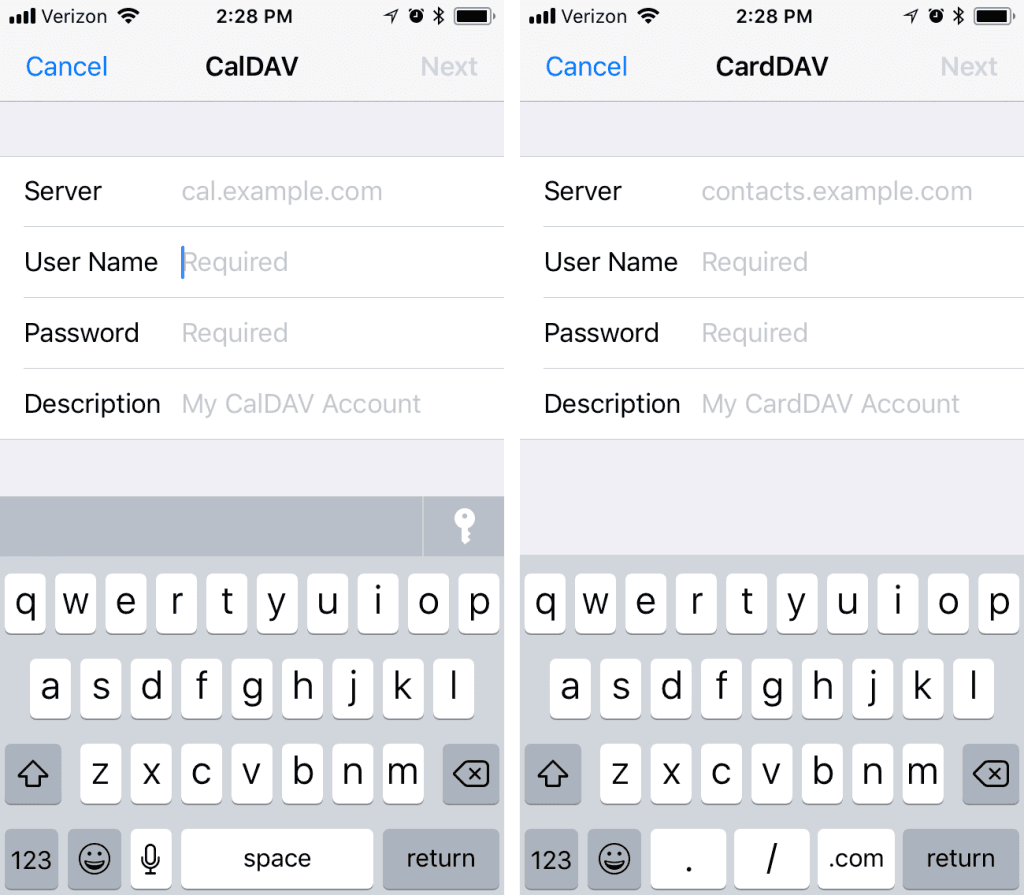
Once saved, your calendar and contacts will sync automatically.
Connecting to macOS
macOS includes built-in support for CalDAV and CardDAV.
- Open System Settings (or System Preferences)
- Select Internet Accounts
- Click Add Other Account
- Choose CalDAV or CardDAV
- Set account type to Automatic
- Enter your email address and password
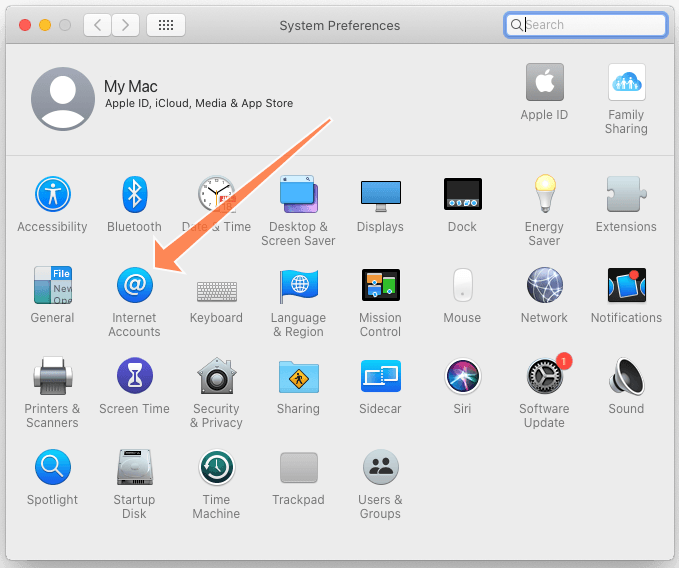
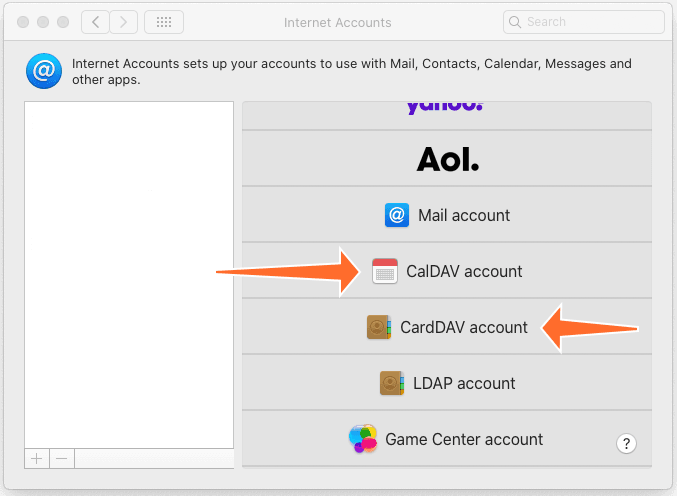
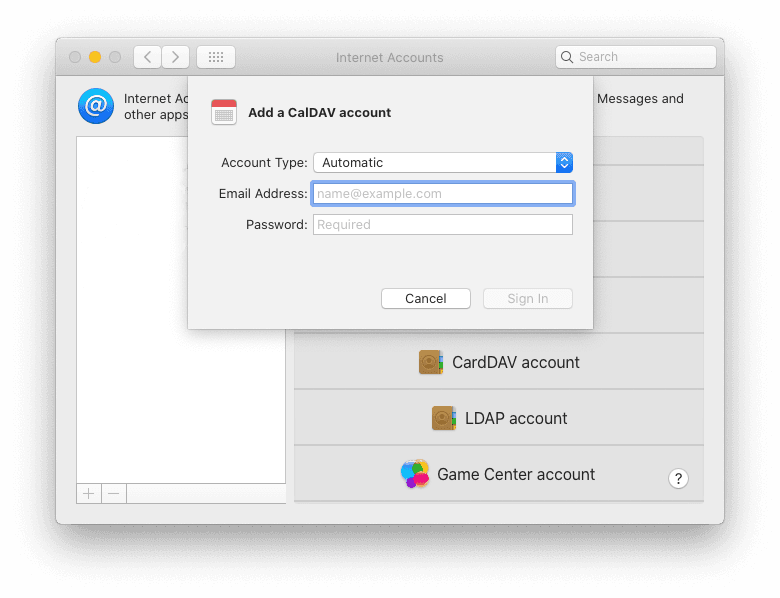
Your calendar and contacts will sync immediately after sign-in.
Connecting to Android and Other Operating Systems
Support varies depending on the app or operating system used. Most CalDAV/CardDAV-compatible apps will work using the following information:
- Username: email address or cPanel username
- Server: mail server or direct URL
- Password: email password
If automatic detection fails, use the direct URLs provided in cPanel.
Using Calendars with Roundcube Webmail
Roundcube, the webmail client included with cPanel, also supports CalDAV calendars.
- Log in to webmail and open Roundcube
- Click the Calendar tab
- Select Add Calendar
- Enter a calendar name
- Paste the direct CalDAV URL from cPanel
- Enter your email username and password
- Save
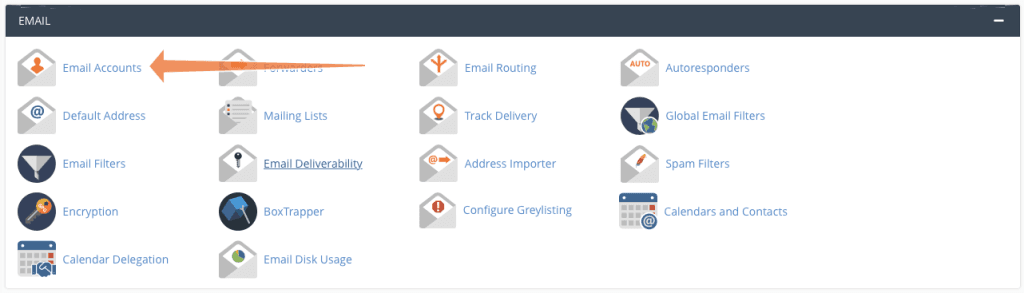
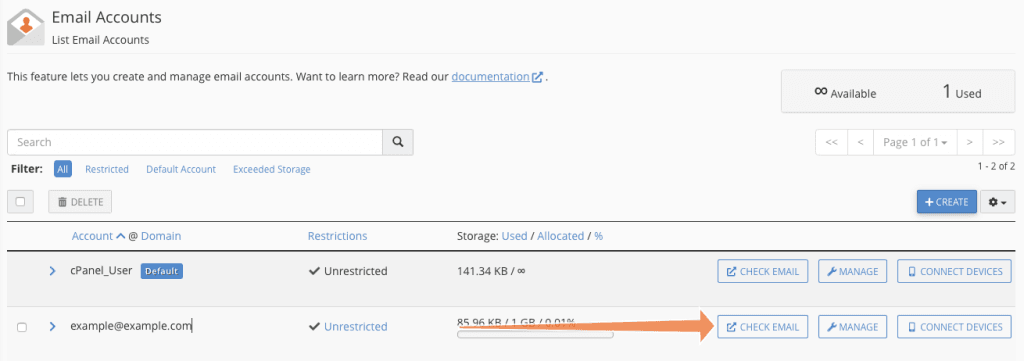
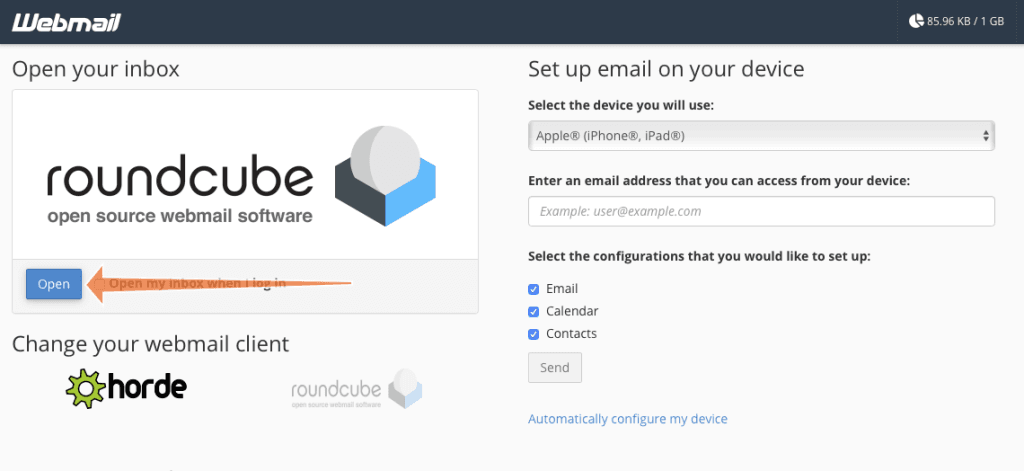
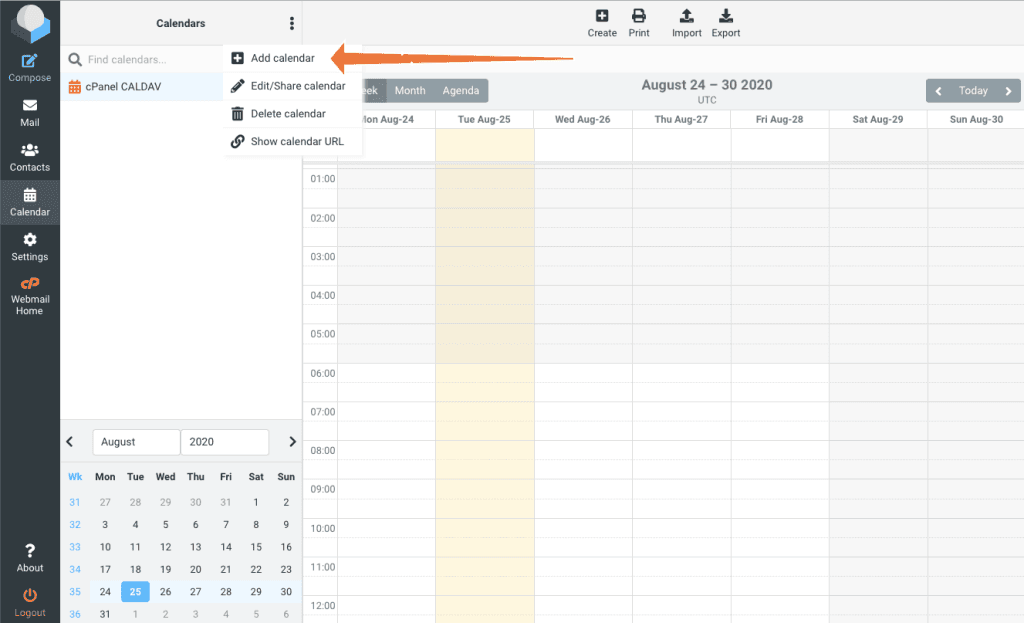
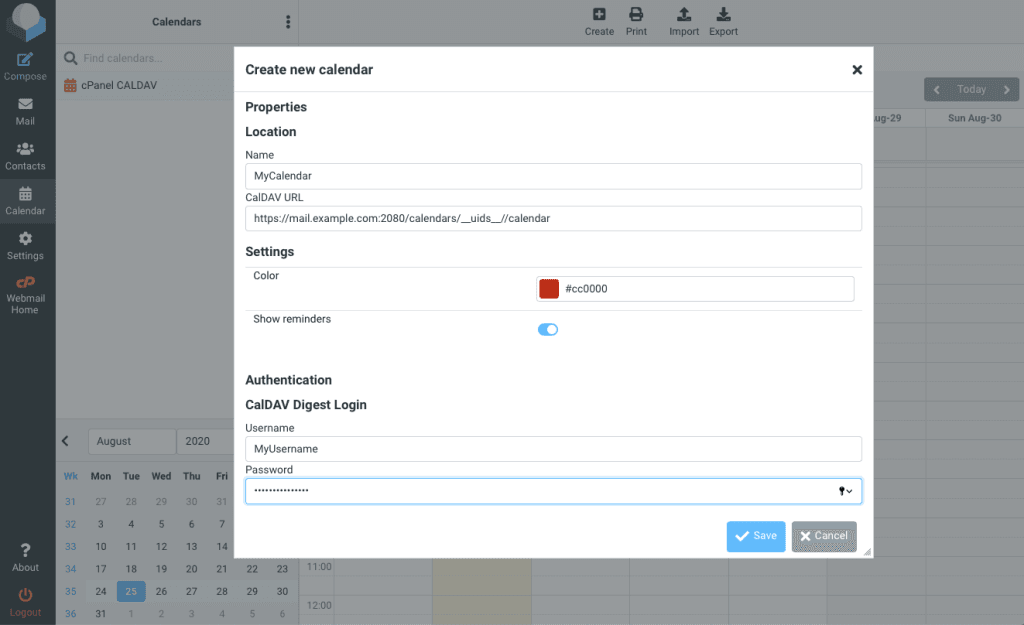
The calendar will sync between Roundcube and any connected devices.
Built-In Calendar and Contact Sync with Your Hosting
With support for IMAP, CalDAV, and CardDAV, cPanel provides a complete communication platform directly within your hosting account. Calendars and contacts can be accessed across phones, tablets, and computers using open standards supported by most modern devices.
If you need help locating your settings or configuring a specific device, our support team is available to assist.
