



You can find our nameservers in your hosting welcome email. You need to update your domain nameservers to our nameservers.
If your domain is registered on Name.com, you should follow this tutorial to update your domain’s Nameservers.
1. Open the Name.com website and click on Log in.

2. Enter the username and password of your account and then click on Log in.
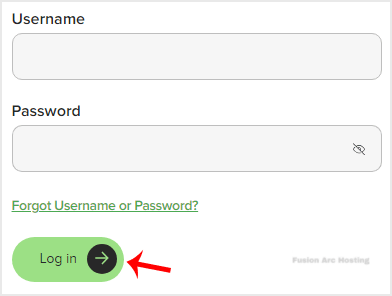
3. After a successful login, click on My Domains, and you will see all of your active domain names under the Domain Name tab.
4. Click on the domain you want to update the nameservers for.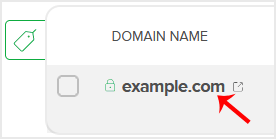
5. Scroll down to the Nameservers section and click Manage Nameservers.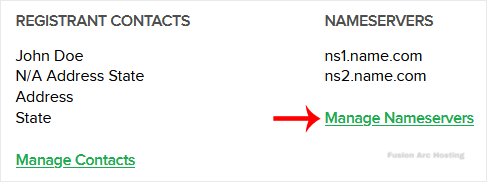
6. Navigate to the Add Nameserver section and enter our nameserver in the text field (for example, ns1.example.com). Then click on Add Nameserver. Repeat this to add our second nameserver.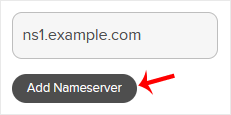
7. Click Save Changes.
Note: You need to check your Hosting Welcome E-mail for your current nameservers. In case you have lost it, contact us. We will be glad to assist you. It may take anywhere from 12 to 24 hours for the changes to take effect worldwide.

