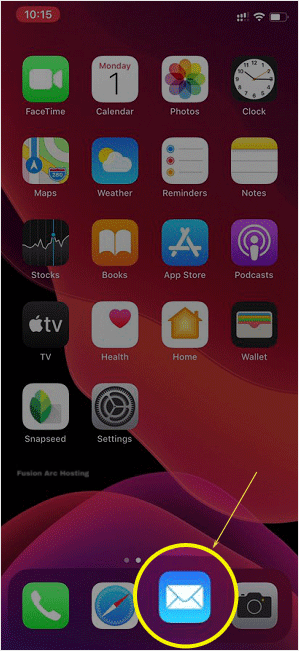
You can add a cPanel email account to your Apple IOS mobile and be able to automatically check emails in a specific time or manually do it. You can get a new email notification on your mobile.
1. Open the main screen of your Apple Mobile and click on the Settings icon.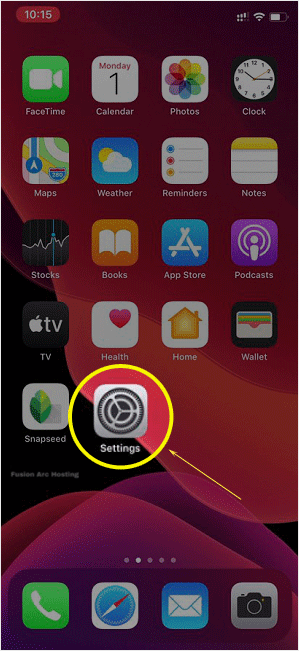
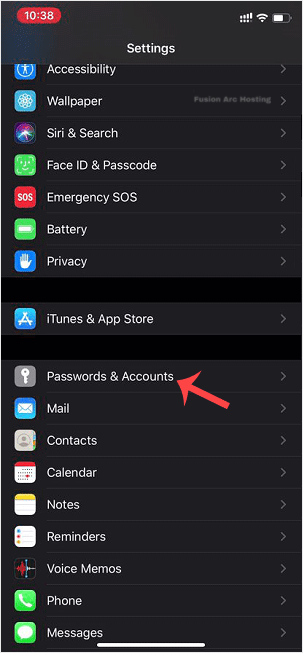
2. Scroll down and tap on Passwords & Accounts.
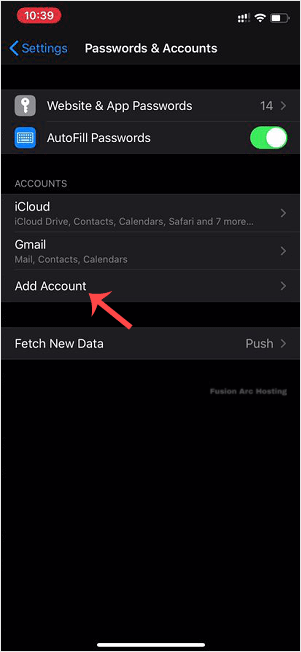
3. Tap on Add Account.
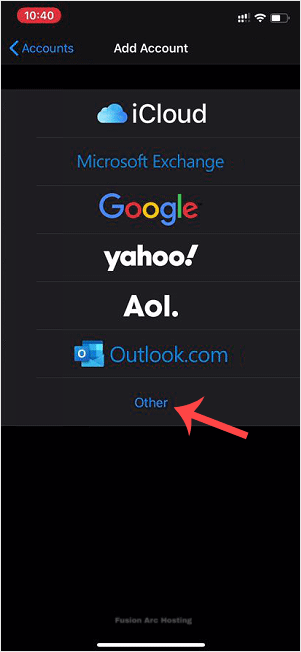
4. Select the Other Option.
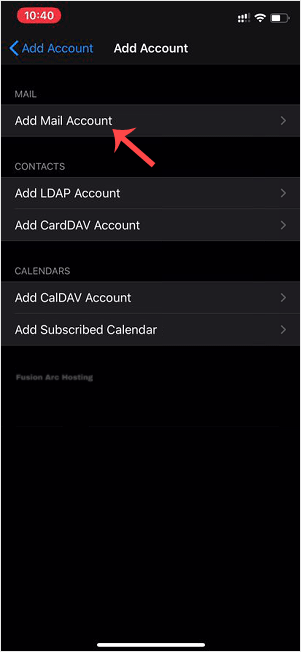
5. Tap on Add Mail Account.
6. Enter the following details:
Email: Your full cPanel Email address.
Description: Add description such as Support Account.
Under Incoming Mail Server, your info should be as follows:
Hostname: Your domain name such as example.com
Username: Your full email address such as user@example.com
Password: Your email password.
Outgoing Mail Server:
Hostname: Your domain name, such as example.com
Username: Your full email address, such as user@example.com
Password: Your email password.
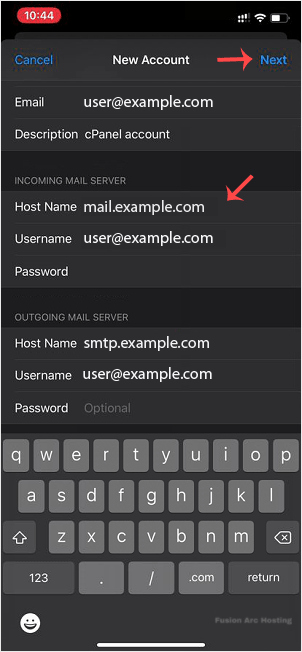
After adding the full details, press the Next button. It can take a few minutes to verify the login details.
Once the email has been added successfully, you can access your newly added email account from the Apple Mail App.