




Two-factor authentication helps secure your account and prevent unauthorized access by adding an extra layer of verification. Even if someone knows your password, they cannot access your account without entering a unique code from the authentication app, which is required during login to SolusVM.
What are the Requirements?
You would need a smartphone with a supported time-based one-time password app. Mobile phone OS such as Android, Windows and iOS have an app for 2FA.
How to Enable Two-Factor Authentication on My SolusVM 2 Account?
1. Log in to your SolusVM 2 Control Panel.
2. Click on Account in the left-hand sidebar.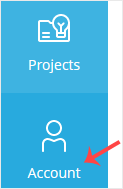
3. Click on Two-Factor Authentication.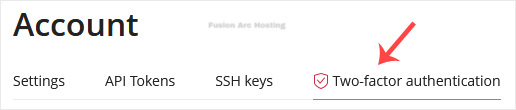
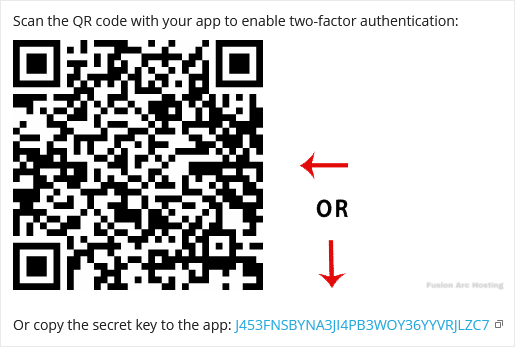
4. Scan the QR code using your Google Authenticator or 2FA authenticator application. If your app doesn’t have a QR code reader, you can either copy the secret key to the app or enter it manually.
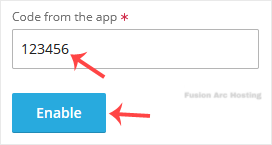
5. Under Code from the app, enter your Two-Factor Authentication code and click on Enable.
6. SolusVM will prompt you for authentication. Enter your SolusVM password to continue.
It should display a success message with a recovery key, which can be useful in case you lose access to your authenticator device. Make sure to copy the recovery key and store it in a safe place.
