



Rescue mode can be used for data recovery, OS repair, etc. You can enable rescue mode on your VPS. Please, follow the below steps.
1. Log in to your Virtualizor Control Panel.
2. From the left side panel, click on List VPS.

3. Hover your mouse on the appropriate VPS, and that line will be highlighted. Then click on the Wrench icon in the highlighted line.

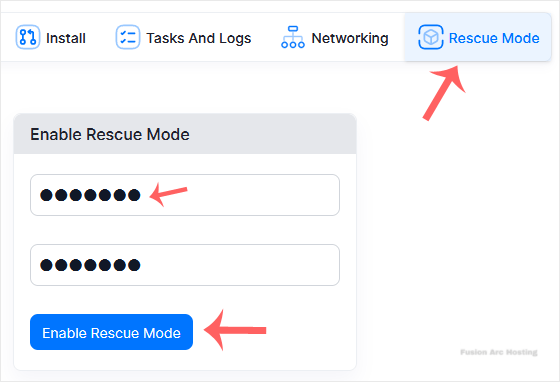
4. Click on Rescue Mode.

5. Enter the password and choose Enable Rescue Mode.
It can take a few minutes for it to take effect. After that, you can access your VPS via SSH with your new password. In case SSH is not accessible, you can access it from VNC.
To disable rescue mode, you can go back to the rescue mode tab and click on Disable Rescue Mode.

