



The Ultimate Guide to Incremental JetBackup 5
At Fusion Arc Hosting, we provide an Incremental JetBackup service with all our cPanel web hosting plans with users that have purchased the per file restoration backup option. This guide explains how to use the two primary methods for data recovery—Restoring and Downloading—and provides a step-by-step walkthrough to get your site back on track from the available 3 day previous backup restore points included in this addon.
1. Understanding the Tools: Restore vs. Download
Before you begin, you must decide which action is right for your current situation.
| Feature | Restore | Download |
| What it does | Replaces live files/databases with backup copies from your selected files and date. | Creates a compressed .tar.gz file that will be added into the Jetbackup panel -> downloads section so you can download the copy to your computer. |
| Effect | Immediate and Permanent. Does not need to have the backup downloaded to your local computer. It overwrites current data directly as selected back into your cPanel. | Safe and Local. Does not change your live site or any data on your cPanel. |
| Best Used For | Fixing a broken site or “undoing” a bad update using the available restore points. | Inspecting code or keeping a personal offline copy. |
[!IMPORTANT]
The Safety Reminder: A “Restore” and or choosing restore will permanently overwrite the files currently on your cPanel. We strongly recommend taking a manual “snapshot” (a quick export or copy) of your current data before initiating a restore if you are unsure that the restore has the correct files you want.
2. How to Recover Specific Files or Folders
Use this method if you accidentally deleted a file, corrupted your .htaccess, or need to revert a specific plugin folder.
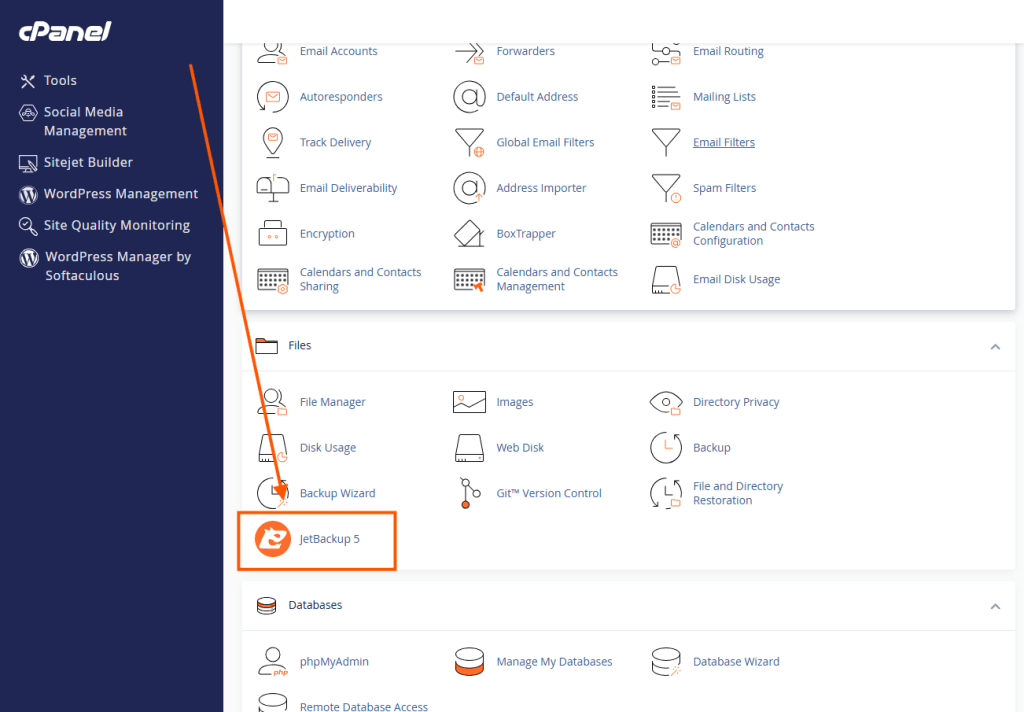
Step 1: Access JetBackup
Log into your Fusion Arc Hosting cPanel. Under the Files section, click the JetBackup 5 icon.
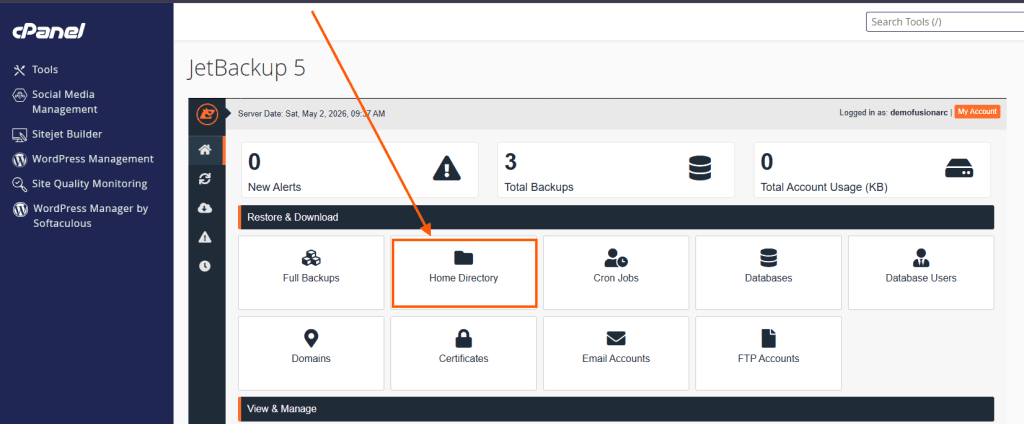
Step 2: Enter the Home Directory
From the dashboard, click on the Home Directory card.
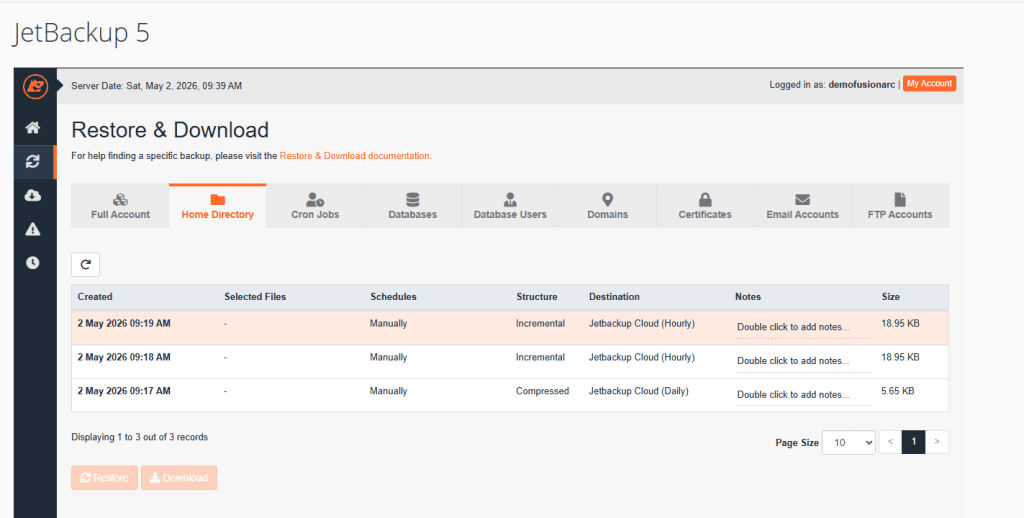
Step 3: Select a Restore Point (The date of which you are trying to get files or folders from)
You will see a list of backup dates (increments). Select the date by clicking on it from when your website was last functioning correctly.
Never choose a compressed backup make sure to use incremental. It will show you structure as “Incremental“
Step 4: Choose Your Files
- Click Change Files Selection.
- Navigate the file manager (usually into
public_htmlfor the main cPanel domain) or whichever domain you are working. - Check the boxes for only the specific files or folders you need.
- Click Select Files. In this example I am restoring the entire (public_html) folder from this specific date of 2 May 2026.
Step 5: Execute Action
- To overwrite the live files immediately, click Restore, then confirm by clicking Restore Selected Items.
- To save the files to your PC first, click Download.
In this example I selected Jetbackup to restore from the incremental backup
3. How to Recover a Database (Even from a specific date)
If your site shows a “Database Error” or you lost specific data like posts or users, follow these steps. Note that if you are restoring main site files and your website also uses a database we recommend you restore the database for that website from the same date you restored the main files for consistency.
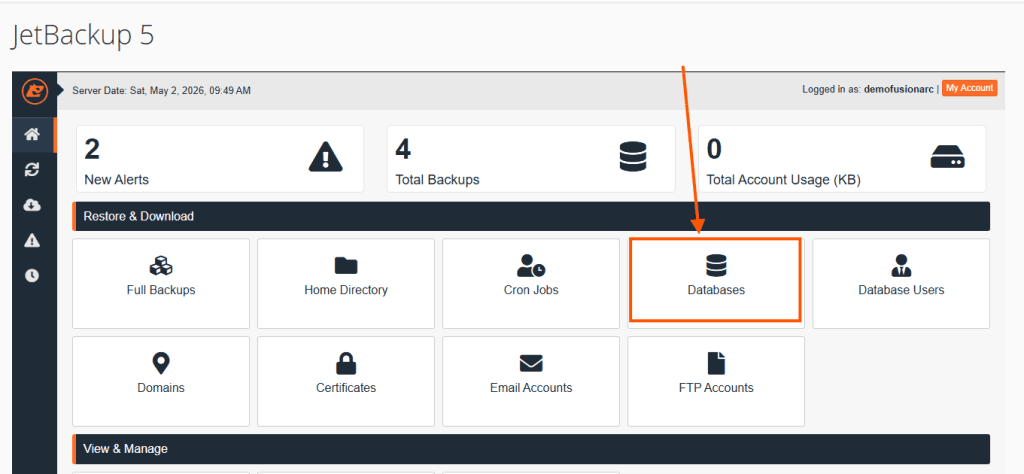
Step 1: Select Databases
From the JetBackup 5 main menu, click the Databases card.
Step 2: Identify Your Database
Find the database used by your site. (If you’re unsure of the name, you can find it in your site’s configuration file, like wp-config.php for a WordPress site or ask our support team for help).
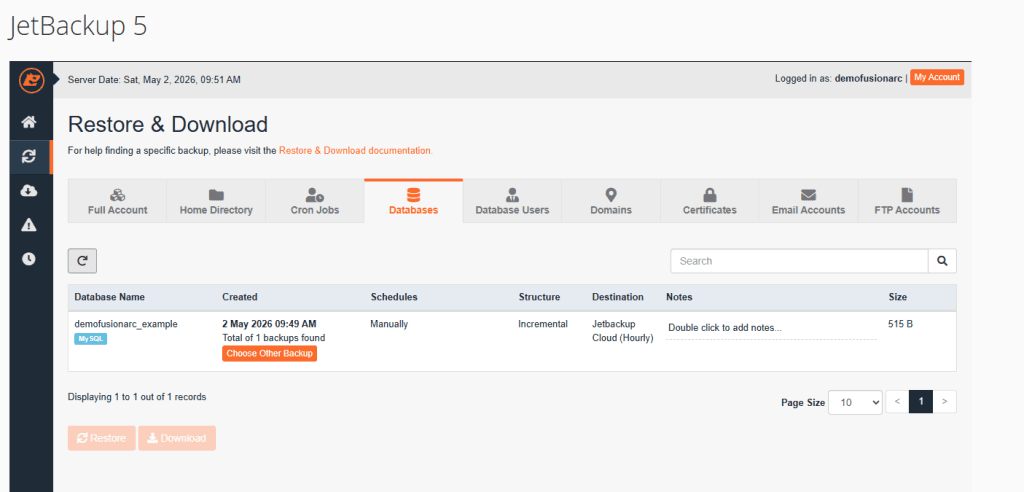
Step 3: Pick the Date
Click on the backup date you wish to use. If the most recent one is after the error occurred, click Choose Other Backup to see older versions.
Step 4: Confirm Restore
Click Restore, review the summary, and click Restore Selected Items.
- Note: Databases are restored by “dropping” the current tables and replacing them with the backup data.
4. Monitoring the Process
Restorations happen in the background so you don’t have to wait with your browser open.
- Click the Queue icon in the left-hand sidebar of JetBackup.
- Pending/Processing: The server is currently moving your data.
- Completed: Your files are restored or your download is ready.
- Downloads: If you chose to download, go to the Downloads section in the sidebar to save/download the file to your computer once the status is “Completed.”
Need Technical Assistance?
Data recovery can be stressful. If you encounter an error in the queue or aren’t sure which backup date to choose, our team is here to help.
- Open a Support Ticket: Access the Fusion Arc Hosting Support Center for 1:1 help.
- Server Status: Our admins are available 24/7 to ensure your incremental backups are always ready when you need them or if you would like us to restore specific files for you based on the date you are wanting we can help with that.

