


We hope you have already read our tutorial on How to Set Up a cPanel Email Account in Android, and you have already added a built-in email widget to your Android screen.
You can set up an automatic email synchronization frequency so that whenever you receive an email on the mail server, it will automatically sync with your Android email app. You will receive notifications for new email.
1. Open the Inbox or Gmail Application.
2. On the top left, tap on Menu. Scroll down to the bottom and choose Settings.

3. Select your email account.

4. Tap on Sync frequency.
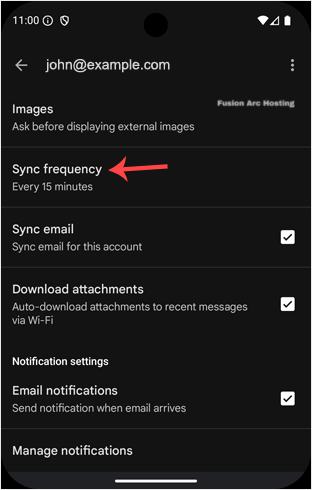
5. Set your frequency to 15 minutes or any other custom time. If you do not wish to sync email automatically, set it to Never. Sync will have to be done manually after setting it to Never.

Now you know how to manage cPanel email syncing on Android. This gives you better control over email updates and data use.