


In this tutorial, you will learn how to configure an FTP backup in Plesk. This allows you to store your website backups on a remote FTP server for added safety and offsite storage.
1. Log in to your Plesk account.
2. Go to Websites & Domains > Click on the Pull icon >> Choose Backup & Restore.

3. Click on Remote Storage Settings.

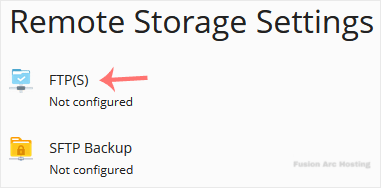
4. Click on FTP(S).
5. Fill in the following details:
– Make sure that Use FTP(S) storage is marked as enabled.
– FTP server hostname or IP: Enter your FTP domain name or IP address.
– Directory for backup files storage: Enter the path where your backup file will be stored, such as /backup.
– FTP Username: Enter your FTP username.
– FTP Password: Enter your FTP Password.
– Use passive mode: We recommend that you either enable it or leave it as it is.
– Use FTPS: You can checkmark it if your FTP server supports a TLS/Encryption.
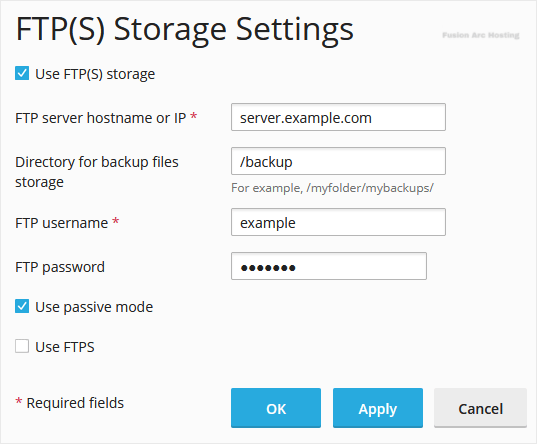
6. Click Apply.
If it displays a success message, it means you have successfully configured an FTP(S) backup in your Plesk. You can now take a backup to the remote backup server.