


It is hard to stop spam email entirely but you can filter it, discard it, deliver it to the selected folder, etc.
How to Create a User Level Email Filter?
1. Log in to your cPanel account.
2. In the Email section, click on Email Filters.
3. Under Filters by Users, you can see all existing email accounts. Click on Manage Filters next to the appropriate one. 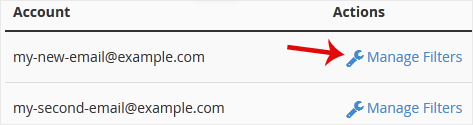
4. Click on Create a New Filter.
5. Enter a name for the filter in the Filter Name input box.
6. You can filter email with many options in the filter rules. If you want to deal with an email containing a word such as Lottery or other words, select Body in the first list box and select Contains in the second one.
7. From the Actions drop-down menu, select Discard Message.
8. Now click on Create.
Your user level email filter is now set up in cPanel and will help keep your inbox clean.