


You can use the email autoresponder for an automated response to your email subscribers or senders. It can prove very helpful when you are on vacation or in similar circumstances.
1. Log in to your SiteWorx account.
2. In the Email section, click on Autoresponders.
3. Click on the Plus icon or Add an Email Autoresponder.
4. Enter the following details:
- Email Address: Enter the email username on which you want to enable the autoresponder. For example, if you want to use it on john@example.com, enter John. Choose the appropriate domain from the drop-down menu in case of multiple domains.
- Send copy to: Leave this as it is or enter the e-mail address where you want to receive a copy of your emails.
- Autoresponder Message: Your vacation message.
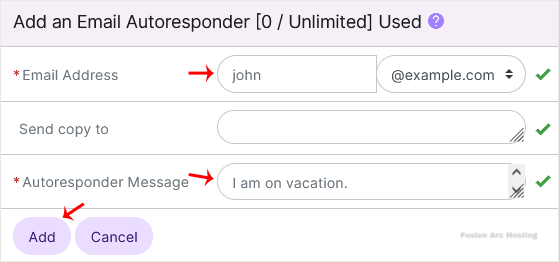
5. Click on Add.
How to remove Autoresponder?
1. Open Autoresponder.
2. Under the Existing Autoresponders, click on the Delete icon next to the e-mail address.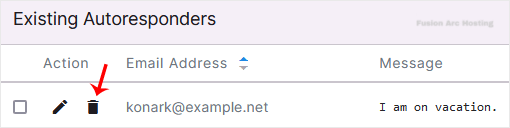
3. Confirm with Delete.
Hope you find our tutorial useful.